
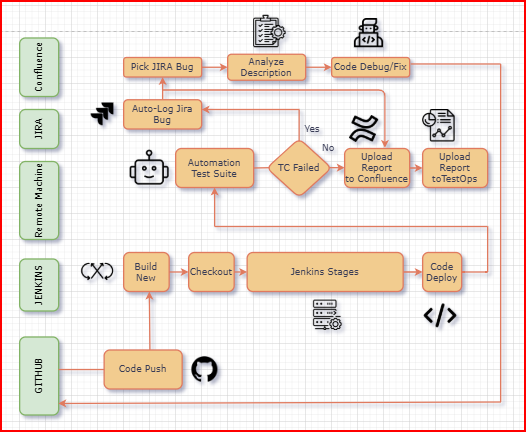
Achieving true continuous testing means removing manual intervention entirely. When developers deploy code, your pipeline should automatically fetch the tests, execute them, identify failures, log detailed Jira defects, and publish a beautiful execution dashboard to Confluence.
In this comprehensive guide, I will walk you through every single step to build this zero-touch automation architecture from scratch. We will cover setting up the Katalon Runtime Engine (KRE), configuring Jenkins securely, writing the pipeline code, and implementing a smart Groovy listener for Jira.
Phase 1: Basic Infrastructure Setup
1. Provision a Windows Cloud Server (AWS / Azure)
To achieve true continuous testing, you cannot rely on your local laptop. Jenkins requires a dedicated, always-on machine to act as its execution node.
- Spin up a Windows Server Virtual Machine on a cloud provider like AWS (EC2), Microsoft Azure, or Google Cloud.
- Ensure the machine has at least 4GB of RAM (8GB+ is recommended) so Katalon can handle browser execution without crashing.
- Connect this Windows VM to your Jenkins master as a dedicated build node, and assign it the label
Windows-Katalon-agent(which we will call in our pipeline script).
2. Setup KRE on your Cloud Machine
Now that your cloud server is running, log into it via RDP (Remote Desktop) and install the tools Jenkins needs to run your tests.
- Download the Windows
.zipfor Katalon Runtime Engine (KRE) from the official Katalon website directly onto the cloud server. - Extract the folder to the C: drive, for example:
C:\KRE10\. Ensurekatalonc.exeis inside. - Make sure you also install Git for Windows on this server so Jenkins can clone your repository successfully.
3. Generate your Katalon API Key
KRE needs a license key to run via the command line on your server.
- Log in to Katalon TestOps on your browser.
- Click the Settings (gear icon) at the top right and select Katalon API Keys.
- Click Create API Key, give it a name, and copy the generated key string. Keep this safe!
4. Create Jenkins Secrets
Never hardcode passwords in your code. We will store them securely in Jenkins.
- Open your Jenkins Dashboard.
- Go to Manage Jenkins > Credentials > System > Global credentials.
- Click Add Credentials.
- Select Secret text. Paste your Katalon API key. Set the ID as
KATALON_API_KEY. - Repeat this process to add your Confluence API Token, setting the ID as
Confluence-API-Token. - Add one more credential, this time choosing Username with password. Enter your GitHub username and Personal Access Token. Set the ID as
testautomationkatalon.
2. Generate your Katalon API Key
KRE needs a license key to run via command line.
- Log in to Katalon TestOps on your browser.
- Click the Settings (gear icon) at the top right and select Katalon API Keys.
- Click Create API Key, give it a name, and copy the generated key string. Keep this safe!
3. Create Jenkins Secrets
Never hardcode passwords in your code. We will store them securely in Jenkins.
- Open your Jenkins Dashboard.
- Go to Manage Jenkins > Credentials > System > Global credentials.
- Click Add Credentials.
- Select Secret text. Paste your Katalon API key. Set the ID as
KATALON_API_KEY. - Repeat this process to add your Confluence API Token, setting the ID as
Confluence-API-Token. - Add one more credential, this time choosing Username with password. Enter your GitHub username and Personal Access Token. Set the ID as
testautomationkatalon.
Phase 2: Creating the Jenkins Task (Job)
Now that our tools and passwords are ready, let's create the actual automation job in Jenkins.
- Go to the Jenkins Dashboard and click New Item on the left menu.
- Enter a name for your project (e.g., "QRT_Sanity_Execution").
- Click on Pipeline (do not choose Freestyle project) and click OK at the bottom.
- You are now on the Configuration page. Scroll all the way down to the Pipeline section.
- In the Definition dropdown, change it from "Pipeline script" to Pipeline script from SCM. (SCM means Source Control Management, like GitHub).
- In the SCM dropdown, select Git.
- Paste your GitHub Repository URL (e.g.,
https://github.com/your-org/repo.git). - Under Credentials, select the
testautomationkatalonaccount you created earlier. - In the Branch Specifier, type
*/masteror*/maindepending on your repository branch. - In the Script Path box, ensure it says exactly
Jenkinsfile. - Click Save.
To run this job, you will simply click Build Now on the left side of the project page.
Phase 3: The Jenkinsfile Pipeline Code
In the root folder of your Katalon project on GitHub, create a file named exactly Jenkinsfile (no extension). Paste the following code into it. This code tells Jenkins exactly how to run KRE and how to upload the HTML layout to Confluence.
(Note: The HTML tags inside this code block have been safely escaped so you can easily copy and paste the entire script without it breaking!)
pipeline {
    agent { label 'Windows-Katalon-agent' }

    environment {
        PATH = "C:\\Program Files\\Git\\bin;C:\\Program Files\\Git\\mingw64\\bin;C:\\WINDOWS\\SYSTEM32;${env.PATH}"
        KATALON_KEY = credentials('KATALON_API_KEY')

        APPLICATION_NAME = 'Internal Web Portal'
        SUITE_NAME       = 'Regression_Sanity_Suite'

        // Confluence Configuration
        CONFLUENCE_EMAIL   = 'ci.bot@yourcompany.com'
        CONFLUENCE_TOKEN   = credentials('Confluence-API-Token')
        CONFLUENCE_URL     = 'https://yourcompany.atlassian.net/wiki/rest/api/content'
        CONFLUENCE_PAGE_ID = '2092335112'
    }

    stages {
        stage('Verify Environment Tools') {
            steps {
                bat '''
                where git
                git --version
                where curl
                curl --version
                '''
            }
        }

        stage('Checkout Repository') {
            steps {
                cleanWs notFailBuild: true
                // Note: Ensure the branch name matches your GitHub repo (master or main)
                git branch: 'master',
                    credentialsId: 'testautomationkatalon',
                    url: 'https://github.com/your-org/e2e_automation_repo.git'
            }
        }

        stage('Run Test Suite') {
            steps {
                dir("${WORKSPACE}") {
                    bat '''
                    "C:\\KRE10\\katalonc.exe" ^
                    -statusDelay=10 ^
                    -retry=0 ^
                    -projectPath="%WORKSPACE%\\MyProject.prj" ^
                    -testSuiteCollectionPath="Test Suites/Regression_Sanity_Suite" ^
                    -apiKey="%KATALON_KEY%" ^
                    --config ^
                    -proxy.auth.option=NO_PROXY ^
                    -proxy.system.option=NO_PROXY ^
                    -proxy.system.applyToDesiredCapabilities=true ^
                    -webui.autoUpdateDrivers=true ^
                    -testOpsProjectId=1173432
                    '''
                }
            }
        }
    }

    post {
        always {
            script {
                try {
                    echo "Locating generated Katalon PDF report artifact..."

                    def pdfFiles = findFiles(glob: 'Reports/**/*.pdf')
                    if (!pdfFiles || pdfFiles.length == 0) {
                        echo "WARNING: Corresponding PDF binary not found in workspace. Skipping upload."
                        return
                    }

                    def latestPdf = pdfFiles[0]
                    for (int i = 1; i < pdfFiles.length; i++) {
                        if (pdfFiles[i].lastModified > latestPdf.lastModified) {
                            latestPdf = pdfFiles[i]
                        }
                    }

                    String pdfFileName = latestPdf.name
                    String cleanBaseUrl = env.CONFLUENCE_URL.trim()
                    String cleanPageId = env.CONFLUENCE_PAGE_ID.trim()
                    String safePdfPath = latestPdf.path.replace('\\', '/')

                    echo "Uploading binary PDF report [${pdfFileName}] to Confluence vault..."
                    bat """
                    curl -X PUT -H "X-Atlassian-Token: nocheck" ^
                    -u "%CONFLUENCE_EMAIL%:%CONFLUENCE_TOKEN%" ^
                    -F "file=@${safePdfPath}" ^
                    "${cleanBaseUrl}/${cleanPageId}/child/attachment" & exit 0
                    """

                    echo "Fetching current version parameters from Confluence..."
                    bat """
                    curl -s -u "%CONFLUENCE_EMAIL%:%CONFLUENCE_TOKEN%" "${cleanBaseUrl}/${cleanPageId}?expand=version,body.storage" > page_details.json & exit 0
                    """

                    String getResponse = readFile(file: 'page_details.json', encoding: 'UTF-8')
                    def pageDetails = parsePageDetailsJsonV1(getResponse)
                    int nextVersion = pageDetails.version + 1

                    String executionTime = new Date().format("yyyy-MM-dd HH:mm:ss")

                    // HTML Content for Confluence Dashboard
                    String minimalLogHtml = """
<h3 style="font-family: Arial, sans-serif; color: #172B4D; margin-top: 20px;">📋 Automated Sanity Suite Dashboard</h3>
<p style="font-family: Arial, sans-serif; color: #5E6C84; font-size: 13px;">Executed on: <strong>${executionTime} (IST)</strong> | Build Reference: <a href="${env.BUILD_URL}">#${env.BUILD_NUMBER}</a></p>

<table style="width: 100%; border-collapse: collapse; font-family: Arial, sans-serif; font-size: 14px; margin-bottom: 15px;">
    <thead>
        <tr style="background-color: #0747A6; color: #ffffff; text-align: left;">
            <th style="padding: 10px; border: 1px solid #DFE1E6; width: 40%;">Execution Attribute</th>
            <th style="padding: 10px; border: 1px solid #DFE1E6; width: 60%;">Run Details</th>
        </tr>
    </thead>
    <tbody>
        <tr>
            <td style="padding: 10px; border: 1px solid #DFE1E6; background-color: #F4F5F7; font-weight: bold;">Application</td>
            <td style="padding: 10px; border: 1px solid #DFE1E6;">${env.APPLICATION_NAME}</td>
        </tr>
        <tr>
            <td style="padding: 10px; border: 1px solid #DFE1E6; background-color: #F4F5F7; font-weight: bold;">Test Suite Collection</td>
            <td style="padding: 10px; border: 1px solid #DFE1E6;">${env.SUITE_NAME}</td>
        </tr>
        <tr>
            <td style="padding: 10px; border: 1px solid #DFE1E6; background-color: #F4F5F7; font-weight: bold;">Jenkins Environment Build</td>
            <td style="padding: 10px; border: 1px solid #DFE1E6;"><a href="${env.BUILD_URL}">Console Log Link</a></td>
        </tr>
    </tbody>
</table>

<h4 style="font-family: Arial, sans-serif; color: #172B4D; margin-top: 15px;">📎 Original Report Reference Archive</h4>
<p>Download full compilation log file: <ac:link><ri:attachment ri:filename="${pdfFileName}"><ri:page ri:content-title="Automation Report" /></ri:attachment><ac:link-body>📥 ${pdfFileName}</ac:link-body></ac:link></p>
<hr style="border: 1px dashed #DFE1E6; margin: 25px 0;" />
""".trim()

                    String integratedFinalContent = minimalLogHtml + pageDetails.existingContent

                    String bodyPayload = buildUpdateJsonPayloadV1(cleanPageId, pageDetails.type, pageDetails.title, nextVersion, integratedFinalContent)
                    writeFile file: 'payload.json', text: bodyPayload, encoding: 'UTF-8'

                    echo "Pushing simplified basic table dashboard into Confluence (v${nextVersion})..."
                    bat """
                    curl -s -X PUT -H "Content-Type: application/json" ^
                    -u "%CONFLUENCE_EMAIL%:%CONFLUENCE_TOKEN%" ^
                    -d @payload.json ^
                    "${cleanBaseUrl}/${cleanPageId}" > api_response.txt & exit 0
                    """

                    String putResponse = readFile(file: 'api_response.txt', encoding: 'UTF-8')
                    if (putResponse.contains('"errors"') || putResponse.contains('"statusCode"')) {
                        echo "Confluence API Error Detected: ${putResponse}"
                        error("Confluence API rejection during sync layout updates.")
                    } else {
                        echo "Pipeline synchronization finalized successfully! Basic details table and PDF link are live."
                    }

                } catch (Exception e) {
                    echo "ERROR inside Confluence Engine: ${e.getMessage()}"
                    currentBuild.result = 'FAILURE'
                }
            }
            cleanWs notFailBuild: true
        }
    }
}

// --- HELPER METHODS FORMATTED FOR CONFLUENCE STORAGE ENGINE V1 VECTORS ---

@NonCPS
def parsePageDetailsJsonV1(String jsonStr) {
    def json = new groovy.json.JsonSlurper().parseText(jsonStr)
    return [
        version: json.version.number,
        title: json.title,
        type: json.type,
        existingContent: json.body?.storage?.value ?: ""
    ]
}

@NonCPS
def buildUpdateJsonPayloadV1(String pageId, String type, String title, int nextVersion, String htmlContent) {
    def map = [
        id: pageId,
        type: type,
        title: title,
        version: [ number: nextVersion ],
        body: [
            storage: [
                value: htmlContent,
                representation: "storage"
            ]
        ]
    ]
    return groovy.json.JsonOutput.toJson(map)
}
Phase 4: Smart Jira Bug Logging (Katalon Test Listener)
To prevent duplicate bug tickets in Jira, we create a Test Listener in Katalon Studio. Open Katalon, right-click on Test Listeners, create a new one, and paste this code. It runs automatically after every test failure.
import com.kms.katalon.core.annotation.AfterTestCase
import com.kms.katalon.core.context.TestCaseContext
import com.kms.katalon.core.logging.KeywordLogger
import com.kms.katalon.core.webui.keyword.WebUiBuiltInKeywords as WebUI
import com.kms.katalon.core.configuration.RunConfiguration
import groovy.json.JsonOutput
import groovy.json.JsonSlurper
import internal.GlobalVariable
import java.nio.file.Files
import java.nio.file.Paths
import javax.net.ssl.HttpsURLConnection
import javax.net.ssl.SSLContext
import javax.net.ssl.TrustManager
import javax.net.ssl.X509TrustManager
import java.security.cert.X509Certificate

class JiraBugLogger {

    // --- JIRA CONFIGURATION ---
    private final String JIRA_BASE_URL = "https://yourcompany.atlassian.net"
    private final String JIRA_USER     = GlobalVariable.JiraUsername
    private final String JIRA_TOKEN    = GlobalVariable.JiraPassword
    private final String PROJECT_KEY   = "AUT" // Update this to your actual project key

    KeywordLogger log = new KeywordLogger()

    @AfterTestCase
    def afterTestCase(TestCaseContext testCaseContext) {
        if (testCaseContext.getTestCaseStatus() == 'FAILED' || testCaseContext.getTestCaseStatus() == 'ERROR') {

            String testName = testCaseContext.getTestCaseId()
            String errorMessage = testCaseContext.getMessage()
            String summary = "Automated Failure: ${testName}"

            log.logInfo("Test failed: ${testName}. Checking Jira for existing issues...")

            // 1. Check for duplicates
            String existingIssueKey = findExistingIssue(summary)

            if (existingIssueKey != null) {
                log.logInfo("Duplicate found! Issue already exists in Jira: " + existingIssueKey + ". Skipping creation.")
                return
            }

            // 2. Take a screenshot of the failure
            String screenshotPath = RunConfiguration.getReportFolder() + "/failure_screenshot.png"
            try {
                WebUI.takeScreenshot(screenshotPath)
            } catch (Exception e) {
                log.logWarning("Could not take screenshot (Browser might have closed): " + e.getMessage())
                screenshotPath = null
            }

            // 3. Create the bug and attach screenshot if available
            log.logInfo("No duplicate found. Creating a new Bug in Jira...")
            String newIssueKey = createJiraBug(summary, testName, errorMessage)

            if (newIssueKey != null && screenshotPath != null) {
                attachScreenshotToIssue(newIssueKey, screenshotPath)
            }
        }
    }

    def String findExistingIssue(String summary) {
        try {
            // JQL query safely escaping quotes
            String jql = "project = '${PROJECT_KEY}' AND summary ~ \"${summary}\" AND statusCategory != Done"
            String searchUrl = JIRA_BASE_URL + "/rest/api/3/search?jql=" + URLEncoder.encode(jql, "UTF-8")

            HttpURLConnection conn = setupConnection(searchUrl, "GET")
            int responseCode = conn.getResponseCode()

            if (responseCode == 200) {
                def json = new JsonSlurper().parseText(conn.getInputStream().getText("UTF-8"))
                if (json.total > 0) {
                    return json.issues[0].key
                }
            }
        } catch (Exception e) {
            log.logError("Error searching Jira for duplicates: " + e.getMessage())
        }
        return null
    }

    def String createJiraBug(String summary, String testName, String errorMessage) {
        try {
            String createUrl = JIRA_BASE_URL + "/rest/api/3/issue"
            HttpURLConnection conn = setupConnection(createUrl, "POST")
            conn.setRequestProperty("Content-Type", "application/json")

            def jsonPayload = [
                fields: [
                    project: [ key: PROJECT_KEY ],
                    summary: summary,
                    description: [
                        type: "doc",
                        version: 1,
                        content: [
                            [
                                type: "paragraph",
                                content: [
                                    [ type: "text", text: "The test case '${testName}' failed.\n\nFailure Details:\n${errorMessage}".toString() ]
                                ]
                            ]
                        ]
                    ],
                    issuetype: [ name: "Bug" ]
                ]
            ]

            OutputStream os = conn.getOutputStream()
            os.write(JsonOutput.toJson(jsonPayload).getBytes("UTF-8"))
            os.flush()

            if (conn.getResponseCode() == 201) {
                def json = new JsonSlurper().parseText(conn.getInputStream().getText("UTF-8"))
                log.logInfo("Successfully created Bug: " + json.key)
                return json.key
            } else {
                log.logError("Failed to create Jira bug. HTTP: " + conn.getResponseCode())
            }
        } catch (Exception e) {
            log.logError("Exception while creating Jira issue: " + e.getMessage())
        }
        return null
    }

    def void attachScreenshotToIssue(String issueKey, String filePath) {
        try {
            String attachUrl = JIRA_BASE_URL + "/rest/api/3/issue/" + issueKey + "/attachments"
            File file = new File(filePath)
            if (!file.exists()) return

            String boundary = "---" + System.currentTimeMillis()
            HttpURLConnection conn = setupConnection(attachUrl, "POST")
            conn.setRequestProperty("Content-Type", "multipart/form-data; boundary=" + boundary)
            conn.setRequestProperty("X-Atlassian-Token", "no-check")

            OutputStream outputStream = conn.getOutputStream()
            PrintWriter writer = new PrintWriter(new OutputStreamWriter(outputStream, "UTF-8"), true)

            writer.append("--" + boundary).append("\r\n")
            writer.append("Content-Disposition: form-data; name=\"file\"; filename=\"" + file.getName() + "\"").append("\r\n")
            writer.append("Content-Type: image/png").append("\r\n\r\n")
            writer.flush()

            Files.copy(Paths.get(filePath), outputStream)
            outputStream.flush()

            writer.append("\r\n").flush()
            writer.append("--" + boundary + "--").append("\r\n")
            writer.close()

            if (conn.getResponseCode() == 200) {
                log.logInfo("Screenshot successfully attached to Jira ticket " + issueKey)
            } else {
                log.logError("Failed to attach screenshot. HTTP: " + conn.getResponseCode())
            }
        } catch (Exception e) {
            log.logError("Exception while attaching screenshot: " + e.getMessage())
        }
    }

    private HttpURLConnection setupConnection(String urlString, String method) {
        URL url = new URL(urlString)
        HttpURLConnection conn = (HttpURLConnection) url.openConnection()

        // Trust-All SSL Bypass Strategy
        if (conn instanceof HttpsURLConnection) {
            try {
                TrustManager[] trustAllCerts = [
                    new X509TrustManager() {
                        public X509Certificate[] getAcceptedIssuers() { return null; }
                        public void checkClientTrusted(X509Certificate[] certs, String authType) {}
                        public void checkServerTrusted(X509Certificate[] certs, String authType) {}
                    }
                ] as TrustManager[]

                SSLContext sc = SSLContext.getInstance("SSL")
                sc.init(null, trustAllCerts, new java.security.SecureRandom())
                ((HttpsURLConnection) conn).setSSLSocketFactory(sc.getSocketFactory())
                ((HttpsURLConnection) conn).setHostnameVerifier({ hostname, session -> true })
            } catch (Exception e) {
                log.logWarning("Failed to bypass SSL handshake setup: " + e.getMessage())
            }
        }

        conn.setDoOutput(method.equals("POST"))
        conn.setRequestMethod(method)

        String auth = JIRA_USER + ":" + JIRA_TOKEN
        String basicAuth = "Basic " + Base64.getEncoder().encodeToString(auth.getBytes())
        conn.setRequestProperty("Authorization", basicAuth)

        return conn
    }
}
Conclusion
By wiring these pieces together, you completely remove the manual overhead of execution and reporting. You now have a pipeline that fetches the latest code, executes it securely on a designated Windows node, prevents duplicate Jira defects, and creates a highly visible, updated dashboard directly on Confluence.